
Facebook Messenger
7 steps · Spark plan or higher
Connect Facebook Page messages to Gabbex
This guide helps you link your business's Facebook Page to Gabbex. When someone opens Messenger from that Page and sends a message, your Gabbex assistant can answer automatically — using the same training and knowledge you use for the chat on your website.
This is not for your personal Facebook profile. It is only for the public Page customers use (for example "Joe's Bakery" or "Smith Plumbing"). If you are unsure whether you have a Page, see Facebook's help for creating a Page or ask whoever runs your business Facebook.
When you're finished, you should see this
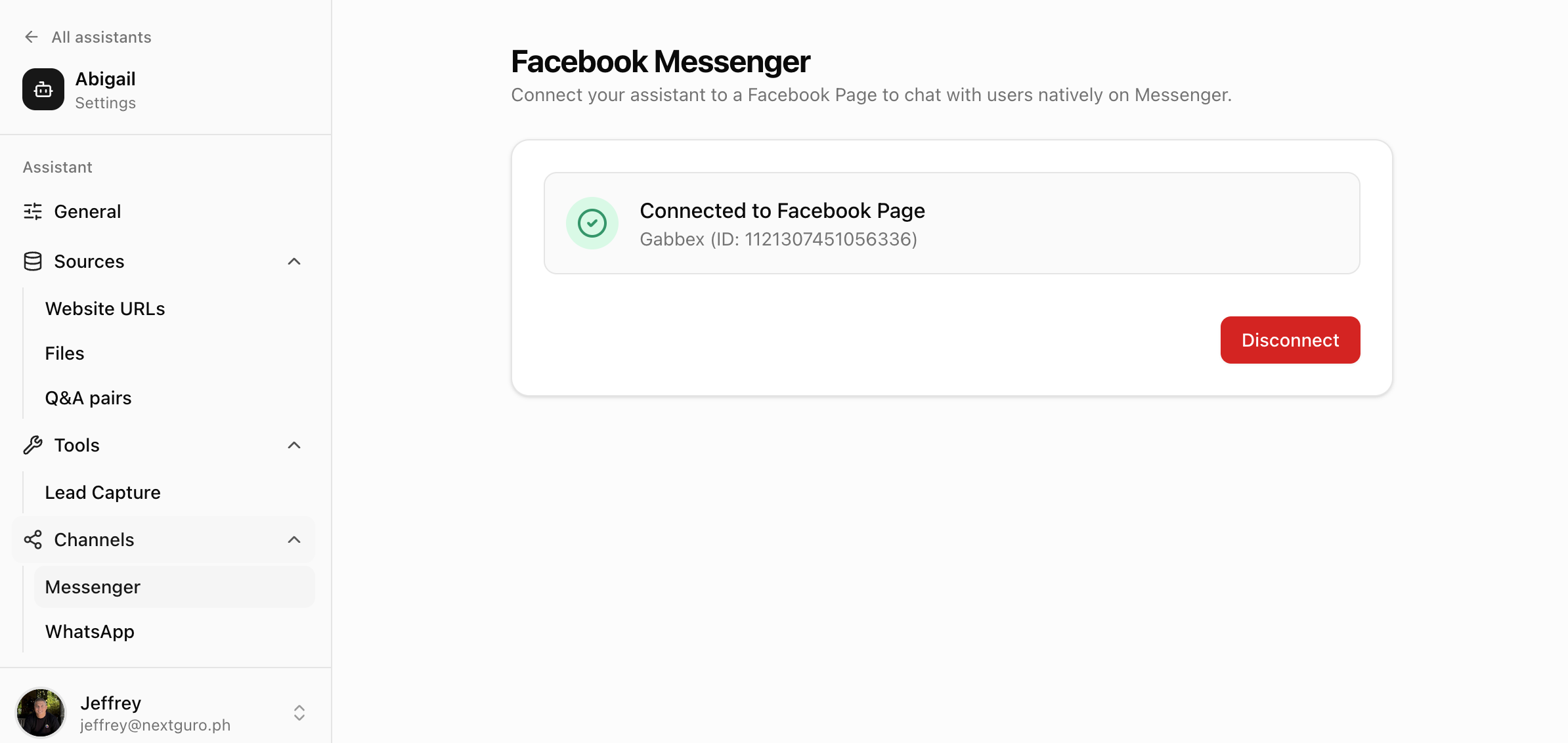
In Gabbex, on the Messenger channel screen, a green-style message should say you are connected and show your Page name. On your phone or computer, a test message to your Page in Messenger should get a reply from the assistant. If both match, you are done.
A few words explained simply
- Facebook Page
- The public business profile on Facebook (with a "Like" or "Follow" button). Customers message the Page, not your private profile.
- Messenger
- Facebook's chat app. Many people message businesses from the Page's "Message" button. Gabbex plugs into that chat.
- Assistant
- The chatbot you set up inside Gabbex (training, answers, lead capture). You can have more than one assistant; you pick which one receives Page messages.
- Continue with Facebook / Connect Page
- Buttons inside Gabbex. The first sends you to Facebook to prove you own the Page. The second saves your choice after you pick which Page to link.
Before you begin
Go through this list in order. If one item is missing, pause and fix it first — it saves frustration later.
- You can log into Facebook in a normal web browser.
- You have a Facebook Page for your business, and you know its name as it appears to the public.
- Your Facebook login has admin access to that Page. If someone else created the Page, they may need to add you as an admin, or complete this guide while logged in as themselves.
- Messaging is turned on for the Page. In Facebook settings, check that people are allowed to message you.
- You know your Gabbex email and password.
- Your Gabbex plan is Spark, Core, or Scale (a paid plan). The dashboard may show a "Requires Spark+" note if you need to upgrade.
- Use a computer or large tablet if you can. The Facebook permission screens are easier to read on a larger display.
Sign in to Gabbex
Open Gabbex in your browser. Sign in with your usual email and password. Do not rush — if the login fails, fix that before moving on.
Open the right assistant and its settings
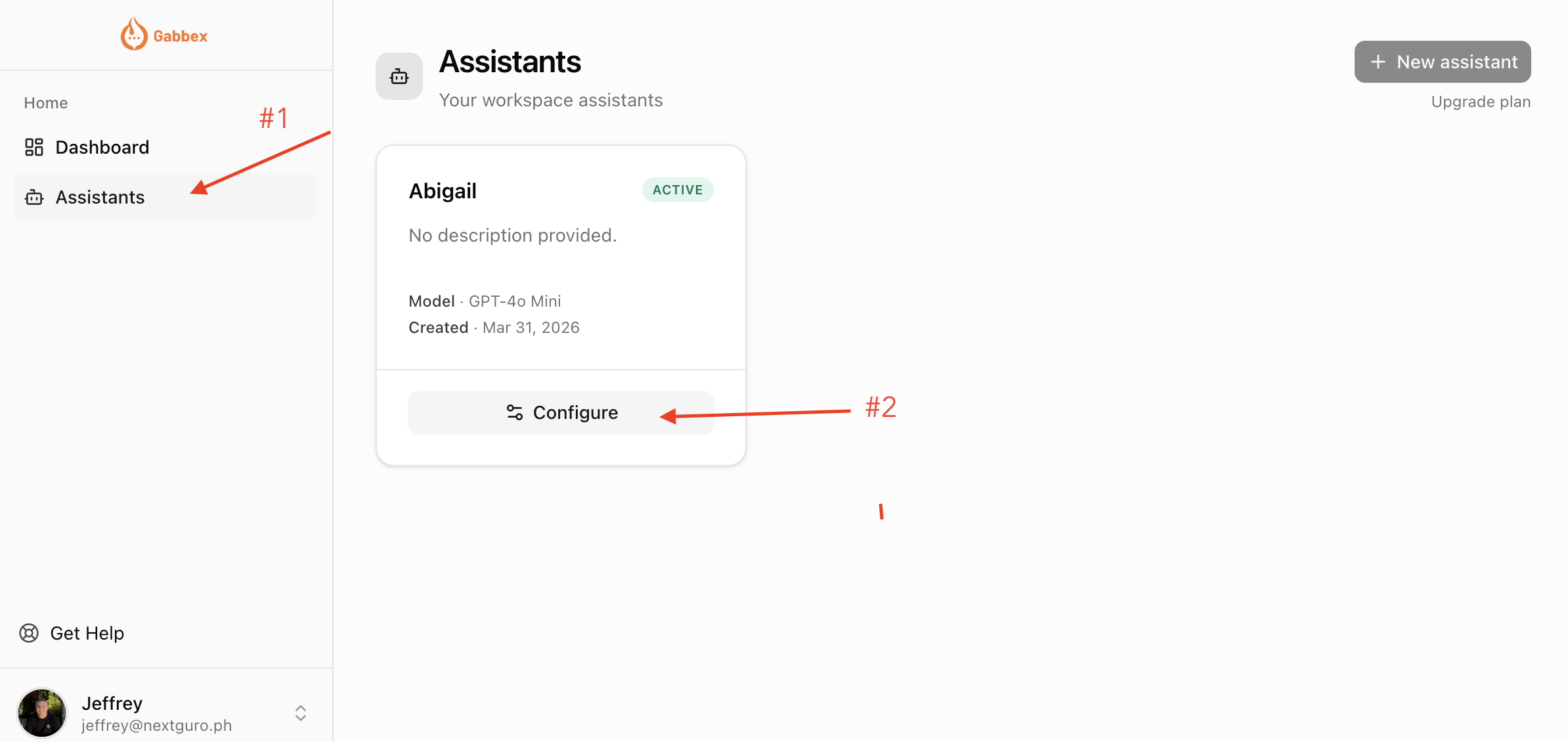
In the dashboard, select the assistant that should answer Facebook messages. Open that assistant's Configure area. You are looking for a section where Channels appear — Messenger, WhatsApp, and Shopify live there.
Tip: The full web address often contains configure and later channels/messenger. Following the menus is enough.
Open the Messenger channel
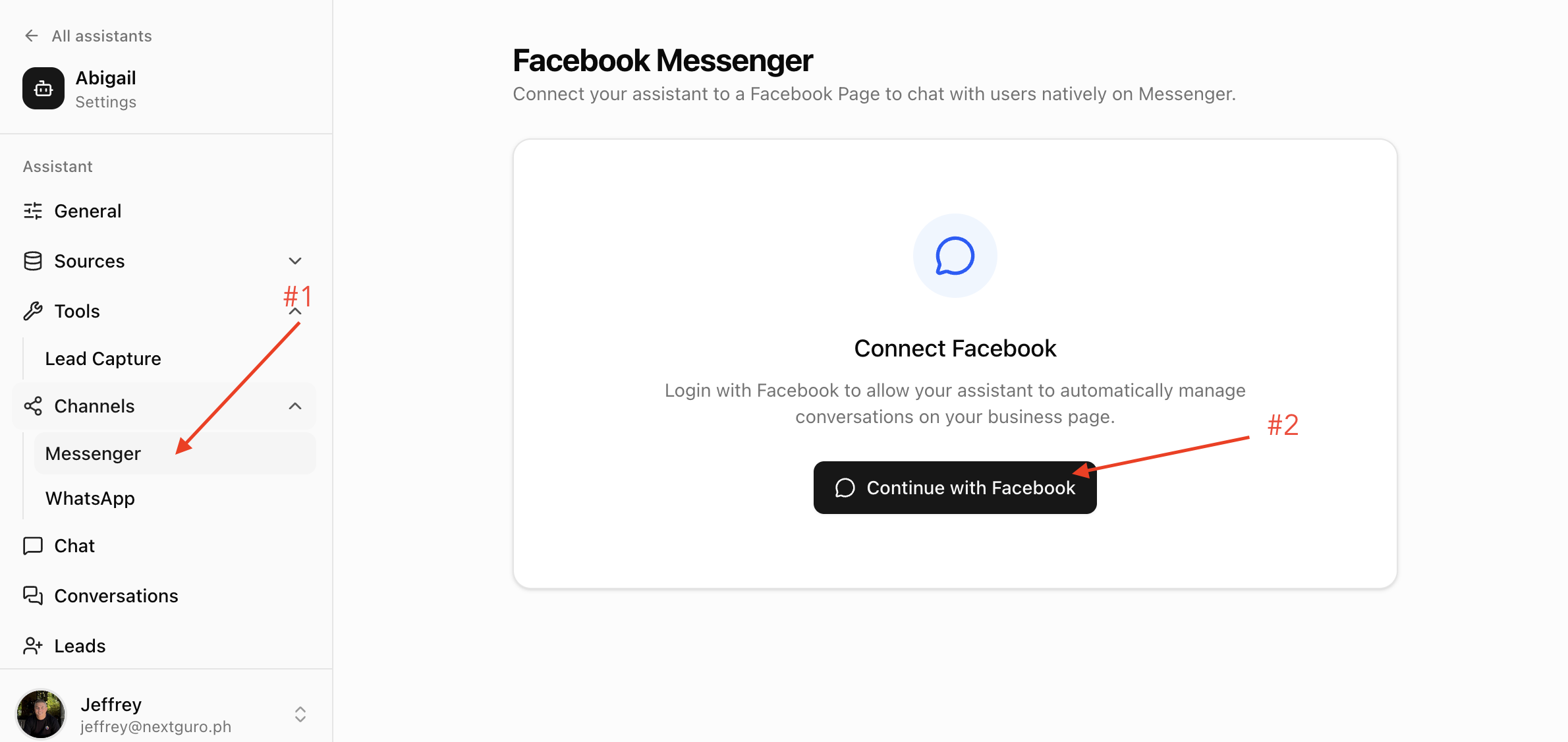
In the left-hand menu for that assistant, click Channels, then Messenger. The page title is usually "Facebook Messenger."
If you already connected a Page before, you will see the connected state instead of the big "Connect" area. To change Pages, use Disconnect first, then follow this guide again.
Start the Facebook connection
Click Continue with Facebook once, then wait. Do not click it again while the page is loading. Your browser may open Facebook in the same tab or a new one — that is expected.
If Gabbex shows that you must upgrade, Messenger is not included on your current plan. Use Subscription or Pricing in the dashboard, move to Spark or a higher plan, then return.
Pop-ups: If nothing happens after you click, your browser may be blocking pop-ups. Look for a small icon in the address bar, allow pop-ups for Gabbex, and try again.
Log in to Facebook and approve access
Sign in with the Facebook account that manages your business Page. If you use the wrong account, your Page will not appear in the next step.
Facebook will show permissions (what Gabbex is allowed to do). Read the list. You must accept what Facebook asks for Page messaging, or Gabbex cannot read or send messages on your behalf.
If Facebook asks which Pages to share, select the Page customers use to message you. You can often select more than one; you will still pick one inside Gabbex in the next step.
When Facebook sends you back to Gabbex, you might briefly see text like "Authenticating with Facebook…" and a spinner. Wait until that finishes.
Pick your Page in Gabbex and connect
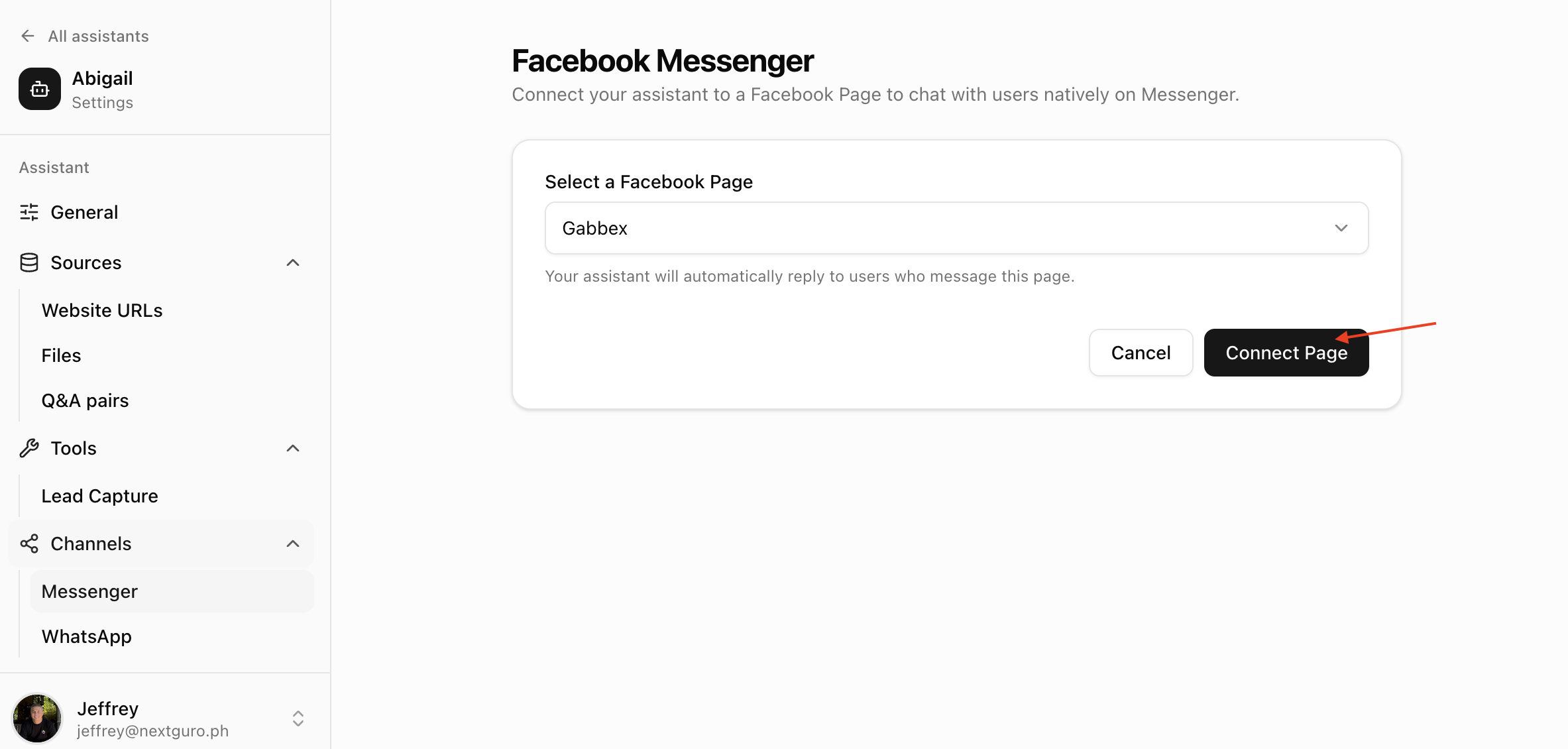
Back in Gabbex, you should see Select a Facebook Page with a dropdown. Open the list and choose the correct Page name. Then click Connect Page. Wait until the button finishes loading.
If the dropdown is empty, Facebook did not return any Pages for the account you used. Log out of Facebook in the browser, start again from "Continue with Facebook," and use the admin account for the Page.
Confirm success and send a test message
After a good connection, Gabbex shows that you are connected to a Facebook Page, with the Page name and an ID number. Read it once to be sure it is the right business.
Now test like a customer. On your phone or computer, open Messenger, find your business Page (not a private chat with a friend), and send a short message such as "Hello." Allow up to a minute or two the first time.
After you connect
- Ongoing replies: New Messenger threads to that Page are handled by the assistant according to your Gabbex training and rules.
- Changing the Page: On the Messenger channel page, use Disconnect. Then run through Continue with Facebook again and pick a different Page.
- Security: Only connect Pages you trust. Anyone who can log into your Gabbex account can change this connection — use a strong password and do not share your login.
Messenger, WhatsApp, and Shopify are different
Messenger uses your Facebook Page. WhatsApp uses a business phone number in Meta. Shopify uses your store in Shopify admin. Each is a separate channel in Gabbex.
If something goes wrong
- "Requires Spark+" or upgrade message: Upgrade to Spark, Core, or Scale in Gabbex, then open the Messenger channel again.
- No Pages in the dropdown: You are not logged into Facebook as a Page admin, or the Page is on another Facebook account. Disconnect any partial setup, use "Continue with Facebook" again, and sign in with the correct admin account.
- Wrong Page connected: Click Disconnect in Gabbex, then reconnect and choose the right Page from the list.
- Facebook error or "Failed to exchange": Wait a minute, refresh the Messenger page in Gabbex, and click Continue with Facebook once. Do not double-click; login codes expire quickly.
- Connected but customers get no reply: Check that Page messaging is still enabled in Facebook, that customers message the connected Page, and that your assistant is active in Gabbex.
- Someone else manages Facebook: Either ask them to add you as a Page admin and repeat the steps, or have them complete the connection themselves.